Check Active Hotspot Users and Disconnect a Session in Mikhmon Pro
Open Hotspot > Active Sessions in Mikhmon Pro V5 to inspect current connections. Match the username, IP, and MAC before choosing Disconnect. This ends the current session while retaining the voucher account; login can happen again if its rules still allow access.
Applies to: Mikhmon Pro V5
- Category
- Troubleshooting
- Read time
- 5 min
- Published
- Updated
- Language
- English
Step-by-Step Guidance
- 1Select the customer’s router and open Hotspot > Active Sessions. Use Refresh active sessions for a current list. The corresponding Winbox view is IP > Hotspot > Active.
- 2Search by username, IP, or MAC using Search user, IP, MAC. Match the device to the customer before taking action. Read Uptime, Bytes In / Out, and Time Left on the same row.

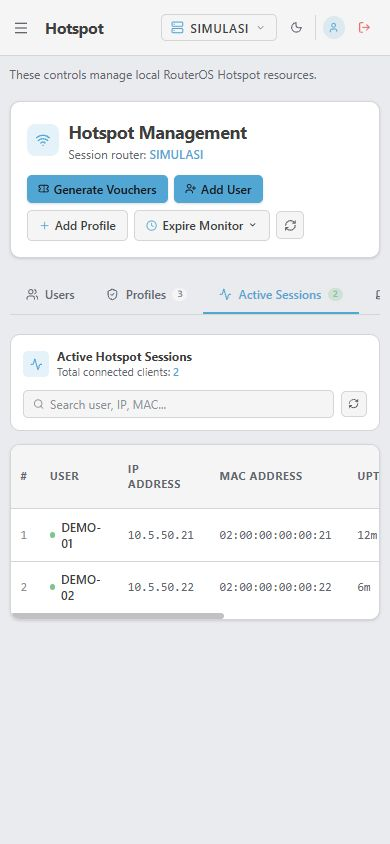
Local simulation: two sample sessions show usernames, IPs, MACs, online time, and time left. Scroll the table horizontally on a narrow screen for later columns. - 3Click Disconnect on the intended session. Recheck the username and IP in Disconnect Live Session. Choose Cancel if they do not match, or Disconnect to end that session.
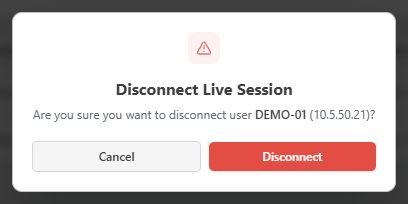
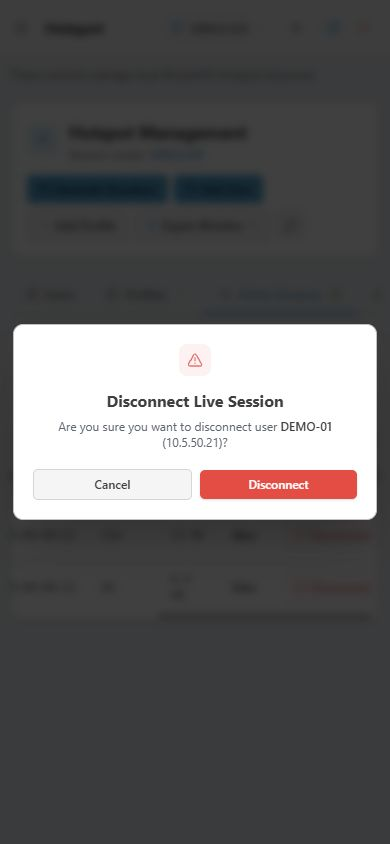
The dialog confirms DEMO-01 at 10.5.50.21 before ending its simulated session. - 4Refresh Active Sessions and check that the selected session is gone. Open Users to confirm the voucher account remains. Disconnecting neither deletes the account nor resets its counters.

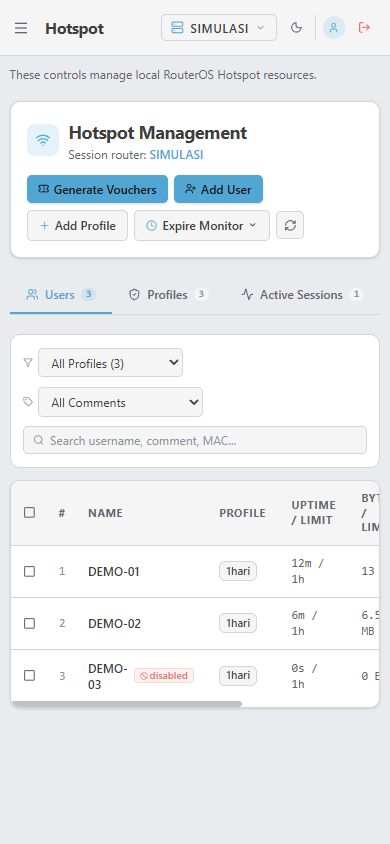
After one simulated session is disconnected, Users still contains three accounts and Active Sessions shows one remaining session. - 5For a longer suspension, review the account in Hotspot > Users and the router’s login policy. For speed complaints, inspect the appropriate interface’s traffic chart on Dashboard and continue network checks on the router.
Start with the customer you are helping
A customer says internet access stopped, but the voucher list still contains their account. Open the active-session list to check whether that account is logged in. An account count and a count of connected sessions answer different questions.
Screenshots use locally simulated data in the real V5 application. DEMO-01 and DEMO-02 are sample names; time and usage values are not measurements from a customer network.
Read time and usage on the same row
Uptime is the duration of the current session. Time Left is the remaining session time reported when available. Check blanks or dashes against account and profile limits, because sessions can have different time policies.
In this V5 table, Bytes In / Out combines incoming and outgoing data into a total. MB measures an amount of data, whereas Mbps measures a transfer rate. A large accumulated total does not establish current bandwidth usage.
For current interface traffic, open Dashboard and select the interface carrying customer traffic. One interface can include multiple customers. Inspecting a session and measuring internet capacity are separate checks.
What changes after Disconnect?
The selected session ends. Its account, profile assignment, and usage counters are not automatically removed or reset. Review the account separately if you intend to extend its allowance or change its package.
If a row returns, check for a new login. Match the username and MAC and inspect the new uptime. Cookie authentication, device auto-login, and account eligibility can allow a customer to reconnect.
When the user is absent from Active Sessions
Check the selected router and search filter, then refresh before concluding that the customer is offline. If Users contains the account but Active Sessions does not, inspect portal login, time limits, disabled status, and Log messages.
On a narrow screen, scroll the table horizontally. Match the identity on the left before using Actions on the right, and take care to stay on the same row.
Frequently asked questions
Does Disconnect restore the voucher’s original allowance?
No. It ends the session without resetting usage counters or restoring the account’s allowance.
Does Bytes In / Out show the customer’s internet speed?
In this V5 table it shows a combined data amount. Use traffic graphs and network checks to inspect transfer rates.