How to Print Mikhmon Hotspot Vouchers on a 58mm / 80mm Thermal Printer
Choose the Thermal layout and match paper size and printable width to your printer driver. Test one voucher for scale, margins, and QR readability. Android Bluetooth printing needs a print service that supports the printer.
Applies to: Mikhmon V3 · Mikhmon Pro
- Category
- Vouchers
- Read time
- 2 min
- Published
- Updated
- Language
- English
Step-by-Step Guidance
- 1Open a voucher batch and select Thermal. Set 58 mm or 80 mm for your printer rather than assuming separate templates exist for both widths.
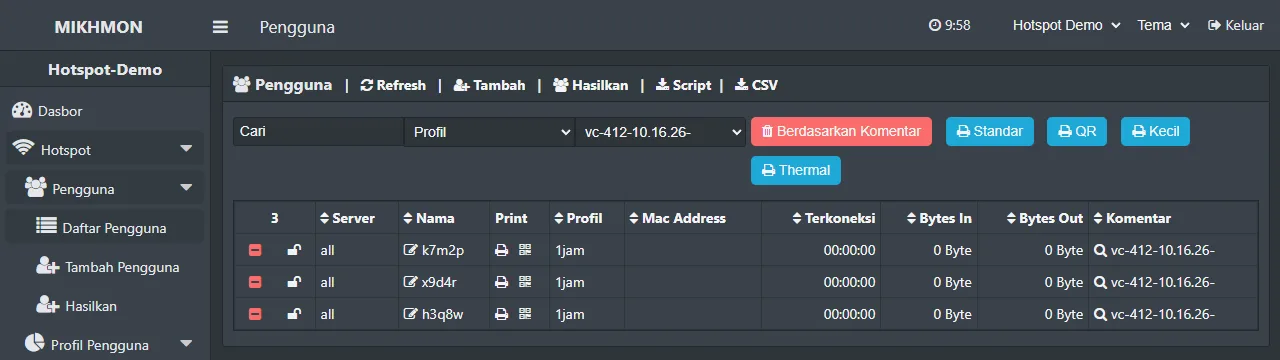
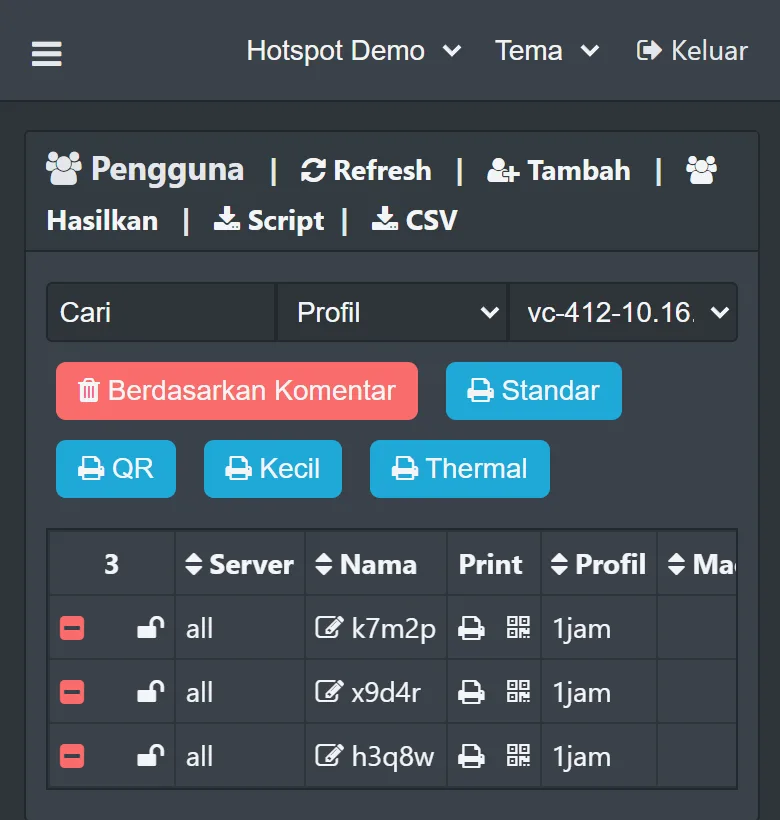
Hotspot > Users filtered by batch - 2On a computer, install the printer driver and select that printer in the browser print dialog.
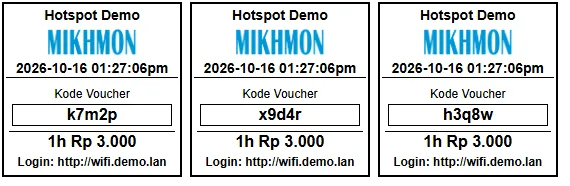
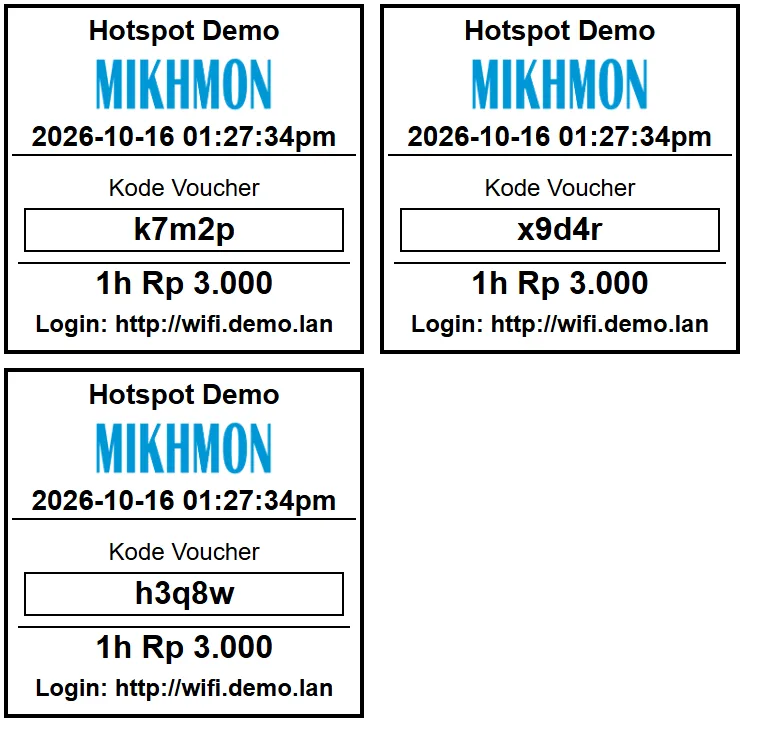
Print vouchers (thermal) - 3Choose the correct paper profile, start at 100% scale, turn off headers and footers, and fit margins to the printable area.
- 4Print one card and scan its QR code. Fix layout width or driver settings before printing a batch if content is clipped.
USB on a computer and Bluetooth on Android
A desktop browser sends jobs through the selected printer driver. On Android, pairing over Bluetooth alone does not necessarily add a printer to the print menu.
Check printer support in a service such as RawBT, and print a simple document from the phone before testing vouchers. Verify the printer model, service, and image or QR route separately.
CSS example for keeping cards within the print area
This example is for a V3 HTML template whose card element has the voucher class. A 48 mm width is a starting point for a test on a 58 mm printer, not a universal hardware setting.
Save a template copy, add these rules to its style section, and match the card class if needed. Adjust width to the device’s printable area. Measure again for an 80 mm roll rather than enlarging the whole page.
@media print {
  @page { margin: 0; }
  body { margin: 0; }
  .voucher {
    box-sizing: border-box;
    width: 48mm;
    max-width: 100%;
    break-inside: avoid;
    page-break-inside: avoid;
  }
  .voucher img, .voucher canvas, .voucher svg {
    max-width: 100%;
    height: auto;
  }
}
Clipped QR codes, split cards, and blank paper
For a clipped QR code, check element width, image dimensions, driver margins, and browser scale. An intact code that will not scan also needs a size and print-quality check.
For split cards, apply break-inside: avoid to the card and match the page length to the driver. Excess blank paper can come from page length or feed settings in the print service.
If the printer is missing, fix its driver or print service first. Editing a voucher template cannot add Bluetooth support to the browser.