Add and Manage PPPoE Customers in Mikhmon Pro
Open PPPoE in Mikhmon Pro V5 to manage the router’s Profiles, Secrets, and Active sessions. Prepare a profile, create a customer Secret with service pppoe, then check its connection in Active. A saved, enabled account is not necessarily online.
Applies to: Mikhmon Pro V5
- Category
- Setup
- Read time
- 5 min
- Published
- Updated
- Language
- English
Step-by-Step Guidance
- 1Prepare the MikroTik PPPoE server, customer interface, address pool, routing, and internet access first. Check Winbox > PPP > PPPoE Servers and IP > Pool, then select the same router in Mikhmon Pro V5.
- 2Open PPPoE > Profiles > Add Profile. This example uses name rumah-10M, Local Address 10.20.0.1, Remote Address (Pool) pool-pppoe-demo, Rate Limit [rx/tx] 3M/10M, and Only One yes. Set the appropriate DNS Server and click Create Profile.

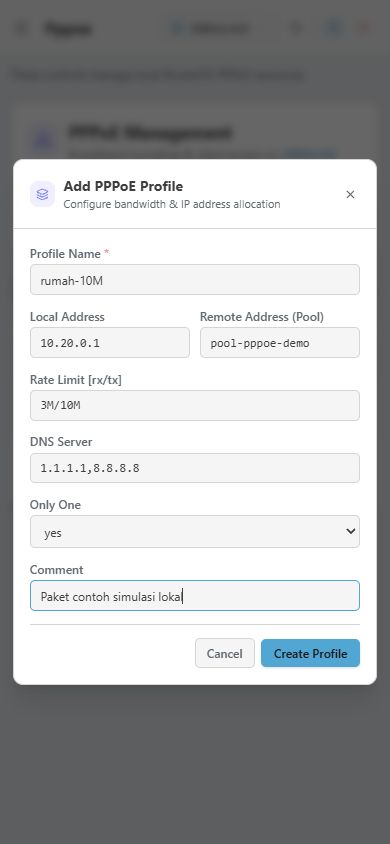
Local simulation: rumah-10M references a sample pool assumed to exist already. Adapt the pool name and addresses to your network. - 3Click Add Secret. Enter the customer username, a strong unique password, Service pppoe, and Profile rumah-10M. Leave address overrides blank when inheriting the profile. Add a useful search comment, then click Create Secret.

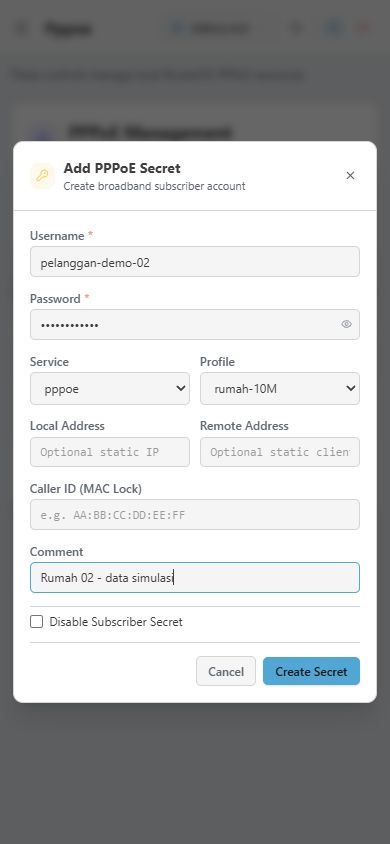
The pelanggan-demo-02 account is assigned to rumah-10M. Its masked form password is simulation data, not customer credentials. - 4Find the saved account in Secrets and check its service, profile, and status. Active in the Secrets table means the account is enabled; it does not establish that the customer router is connected.

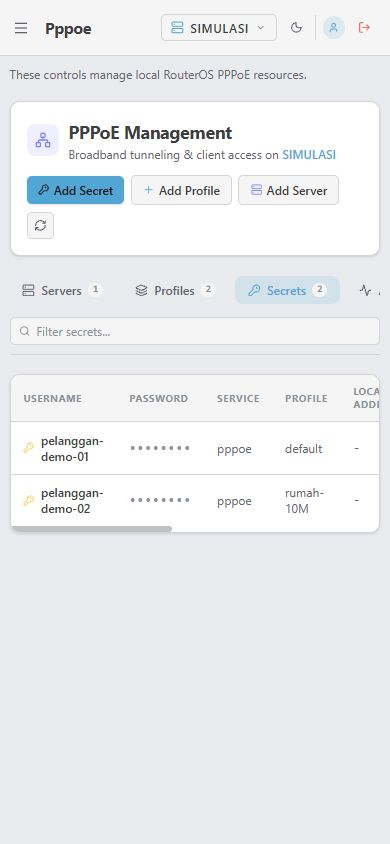
The simulation stores two Secrets. Their Active labels mean enabled accounts; the Active tab contains only one session. - 5Configure the account credentials on the customer’s PPPoE client, then inspect Active. Match the username, Caller ID, Assigned IP, and Uptime. The corresponding Winbox list is PPP > Active Connections.

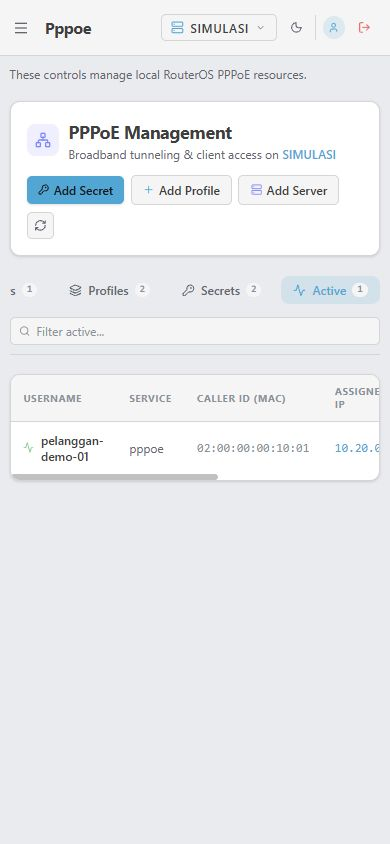
Active shows a separately seeded simulated session for pelanggan-demo-01. This does not show a successful connection by the newly created pelanggan-demo-02.
Separate the package, account, and connection
Adding a home customer requires a package profile and PPPoE login account. The customer appears in the connection list after their device dials and the router accepts it. Saving a Secret does not initiate that connection.
This guide covers local RouterOS PPPoE management through V5. Screenshots come from a local simulation without a connected customer device or internet test. Monthly billing and external authentication require their own configuration.
Plan addresses and speed limits before adding accounts
Local Address is the router-side PPP address. A profile’s Remote Address can name a client address pool. The example pool-pppoe-demo must already exist on the router; entering its name does not create a pool.
The sample 3M/10M caps client upload at 3 Mbps and download at 10 Mbps. Choose limits for your network capacity. Only One yes restricts each account to one session with local authentication.
Check subnet use, routing, and existing allocations before copying example addresses into a running network. The address 10.20.0.1 is an example, not a universal PPPoE gateway.
Save the Secret and check an actual connected session
Secrets lists accounts available for authentication. In the example, pelanggan-demo-02 is saved with rumah-10M but has no session. The Active tab’s pelanggan-demo-01 is a separately prepared sample session.
If the new customer is absent from Active, check client credentials, service, disabled status, profile, address-pool availability, and router Log. Also verify the server interface and the path between client and PPPoE server. An empty session list does not by itself mean the account was not saved.
On narrow screens, scroll horizontally to inspect profile and status columns. Search by the exact username before changing a customer account.
Disconnect a tunnel or disable an account
Disconnect in Active ends the selected tunnel. The client can dial again while its account remains eligible. To prevent subsequent local authentication, edit the Secret, select Disable Subscriber Secret, and save.
When stopping a customer who is currently online, inspect Active too. Disabling an account and disconnecting its session are separate actions. When restoring access, verify both the account status and the actual connection.
Do not assume a package change immediately updates an existing tunnel. Check the profile and the result of reconnection at a time agreed with the customer. Compare PPP > Profiles and PPP > Secrets in Winbox when diagnosing differences.
Frequently asked questions
Is a PPPoE account the same as a Hotspot voucher?
No. PPPoE uses PPP > Secrets and a PPP client connection. Hotspot vouchers belong to IP > Hotspot. The services have separate account lists and profiles.
Why does a Secret say Active while the customer is offline?
Active in the V5 Secrets table means the account is enabled. Inspect the separate Active tab for connected sessions.