How to Change the Mikhmon Voucher Template (Default, Thermal, Small)
Open Template Editor in Mikhmon V3, pick the Default, Thermal, or Small template, edit its HTML, and click Save. Voucher data appears through variables such as $username, $password, $price, and $qrcode.
Applies to: Mikhmon V3 template editor · Pro V5 notes
- Category
- Vouchers
- Read time
- 3 min
- Published
- Updated
- Language
- English
Step-by-Step Guidance
- 1Sign in to Mikhmon and open Template Editor.
- 2Pick the template to change. Default is for A4 paper, Thermal for 58 or 80 mm printers, and Small for compact vouchers.

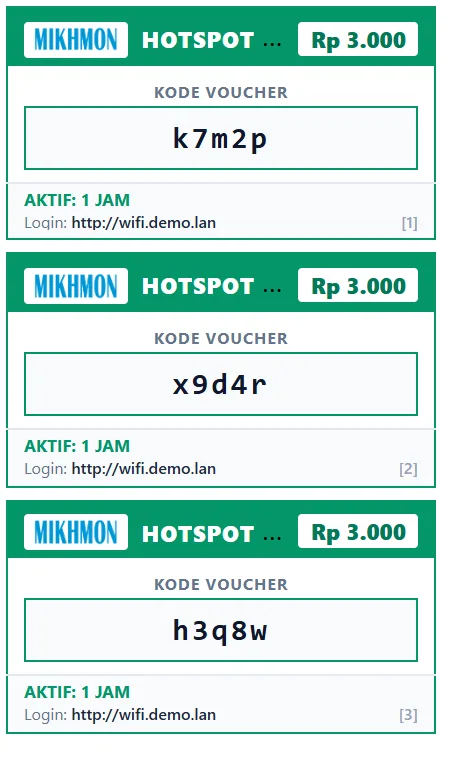
Print vouchers (default template) 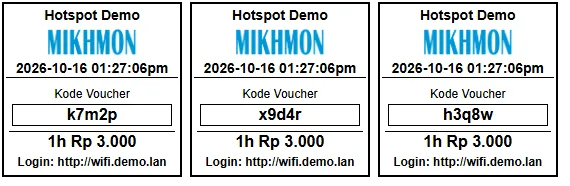
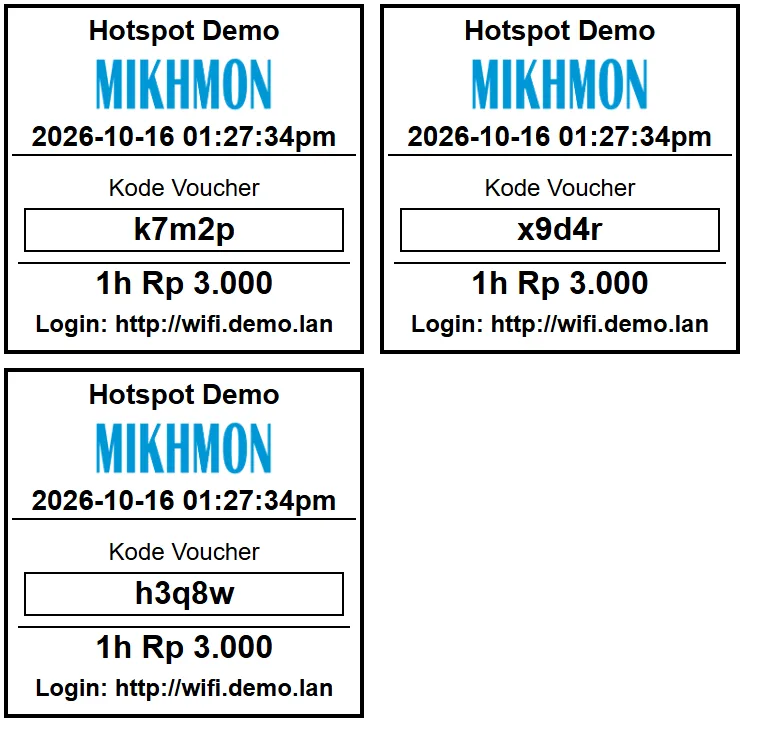
Print vouchers (thermal) 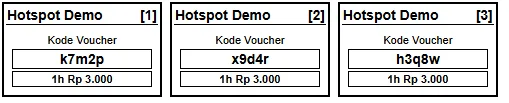
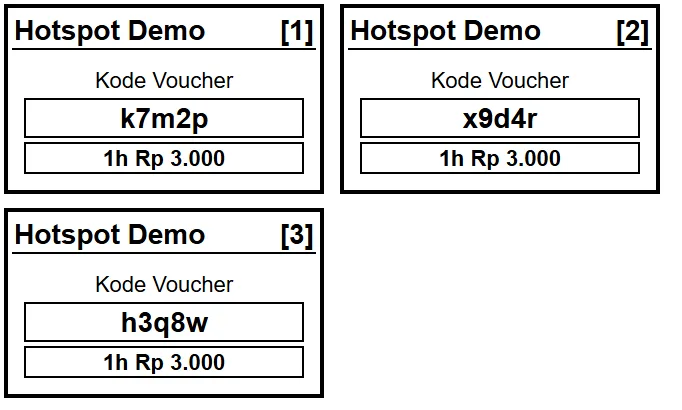
Print vouchers (small) - 3Edit the HTML and CSS in the editor, using variables such as $username, $password, $price, $validity, and $qrcode.
- 4Click Save, then print one test voucher from Generate or Quick Print before printing a batch.
Available template variables
Mikhmon replaces the variables when a voucher prints. The most used are $hotspotname, $username, $password, $validity, $timelimit, $datalimit, $price, $profile, $comment, $dnsname, $qrcode, $logo, and $num for the voucher's sequence number.
$usermode is vc when the username equals the password and up when they differ. Use it to hide the password line on single-code vouchers.
Changing the logo and colours
The voucher logo comes from $logo. Upload a new one with Upload Logo and make sure the template has an img tag that uses $logo as its source.
Colours and sizes live in the CSS at the top of the template. Change a little at a time and check the preview before printing a batch.
Login QR codes
$qrcode shows a QR code that opens the hotspot login page at the DNS name with the username and password filled in. Customers only need to scan it.
Set the hotspot DNS name in Mikhmon's router settings so the QR code points to the right login page.
V3 and Pro V5 have different editors
PHP variables such as $username and $qrcode in this guide apply to V3. Do not paste a PHP template into V5 and assume it will be processed in the same way.
In Pro V5, start with an available built-in template, inspect the editor options, and print one test account. Keep a separate V3 template copy when planning a version change.
Test printing before a large batch
For V3, match the card’s HTML class to your CSS selector. Test one sheet after changing dimensions, logos, or QR codes. Use the device’s printable area when choosing width.
Frequently asked questions
Why don't my template changes show when I print?
Default, Thermal, and Small are saved separately. Make sure you edit the same template you pick when printing.
Can one A4 sheet fit more vouchers?
Yes. Shrink the voucher box width in the CSS of the Default or Small template until more columns fit on a row.
Are templates lost when I reset a Mikhmon Online instance?
Yes. Reset instance deletes routers, vouchers, templates, logos, and settings. Save a copy of your template HTML before resetting.