Why Can't Mikhmon Connect to the MikroTik RouterOS API?
Common causes include an inactive API service (port 8728), incoming firewall drop rules blocking traffic, incorrect IP/port settings, or missing 'api' group permissions in RouterOS.
Applies to: Mikhmon V3 · Mikhmon Pro
- Category
- Troubleshooting
- Read time
- 3 min
- Published
- Updated
- Language
- English
Step-by-Step Guidance
- 1Under IP > Services, match the service, port, and Available From to the Mikhmon server’s VPN source.
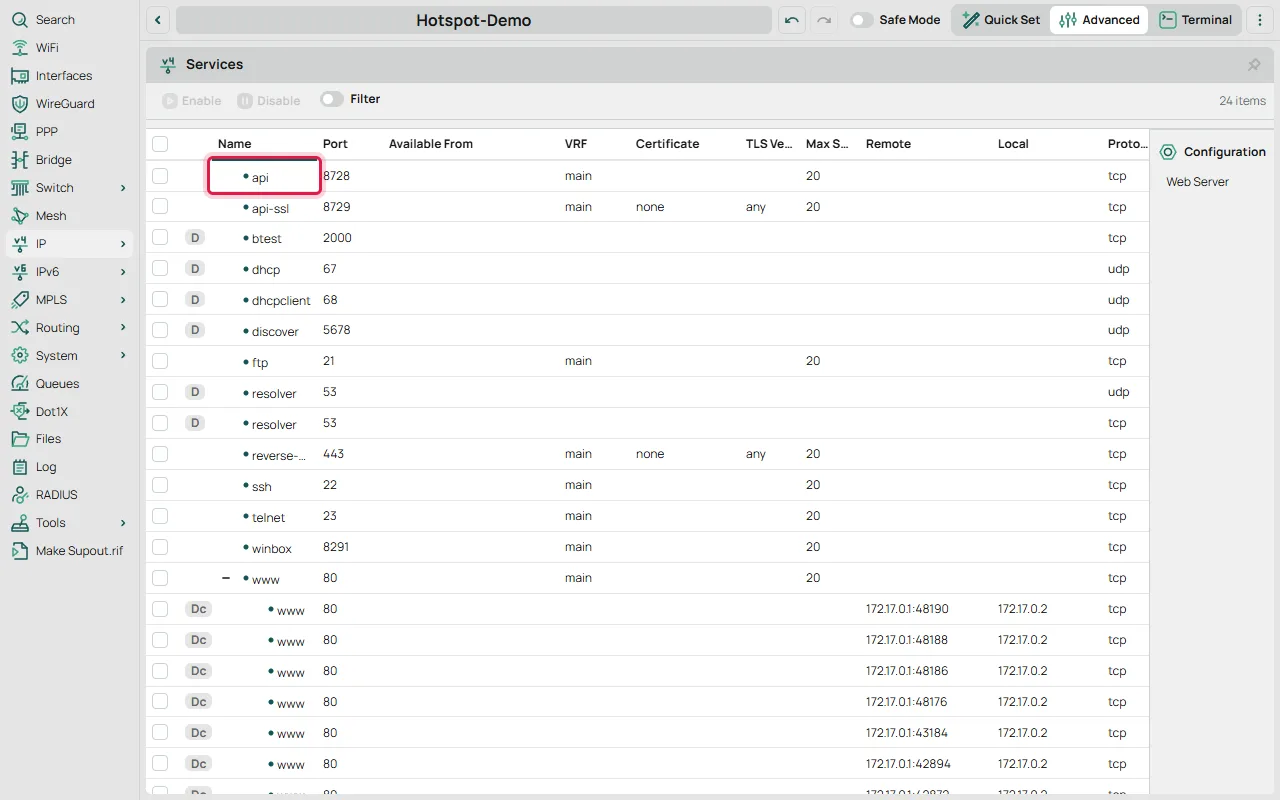
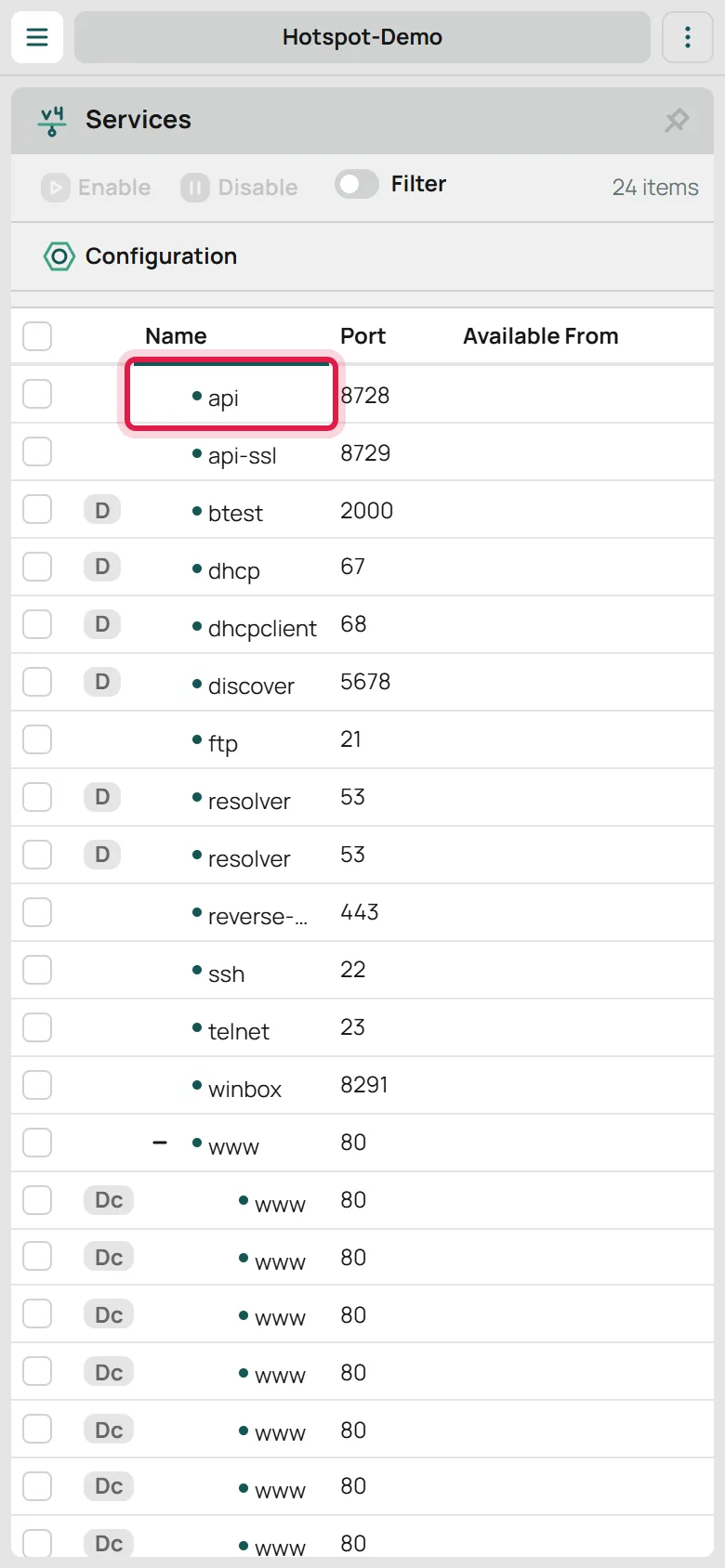
IP > Services - 2Inspect input firewall rules on the VPN route and their order relative to drop rules. Do not allow every source or disable the firewall.
- 3Confirm under System > Users that the user account's group policy has the 'api' permission explicitly checked.
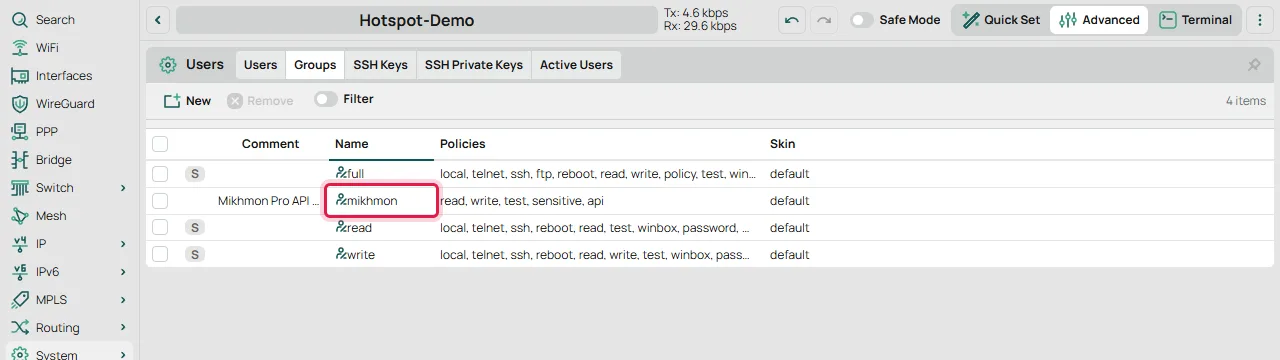
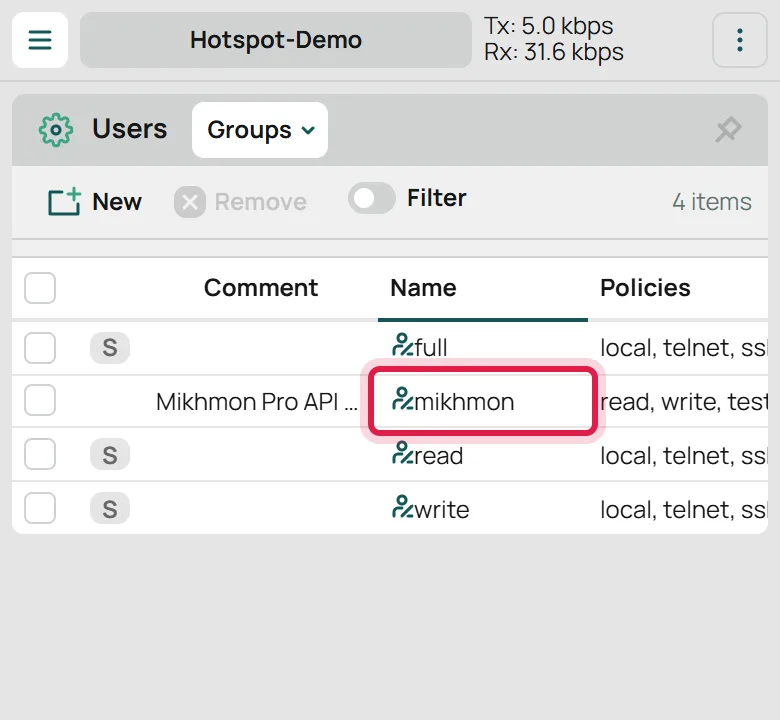
System > Users > Groups - 4Confirm the VPN is running and check the route from the server to the router’s VPN address, including the return route.
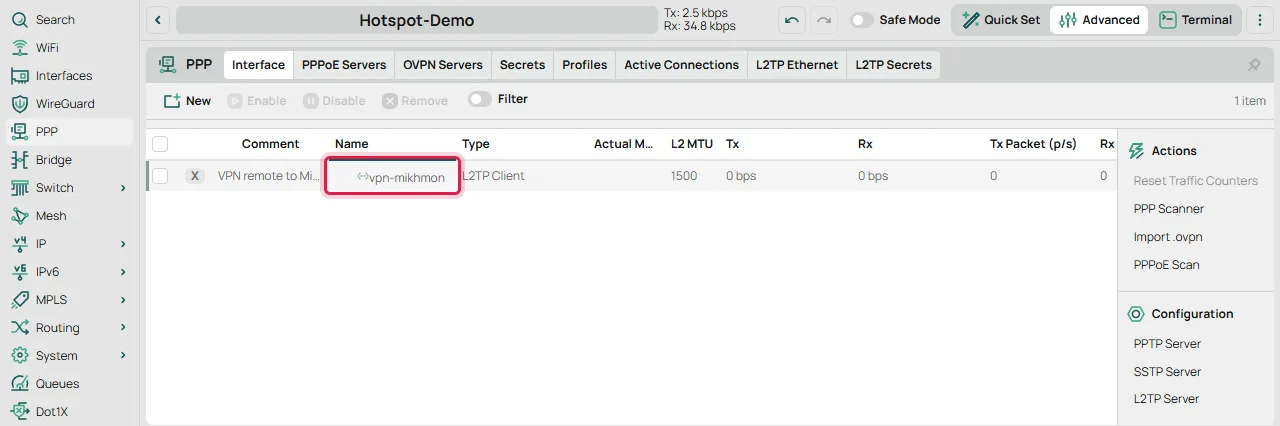
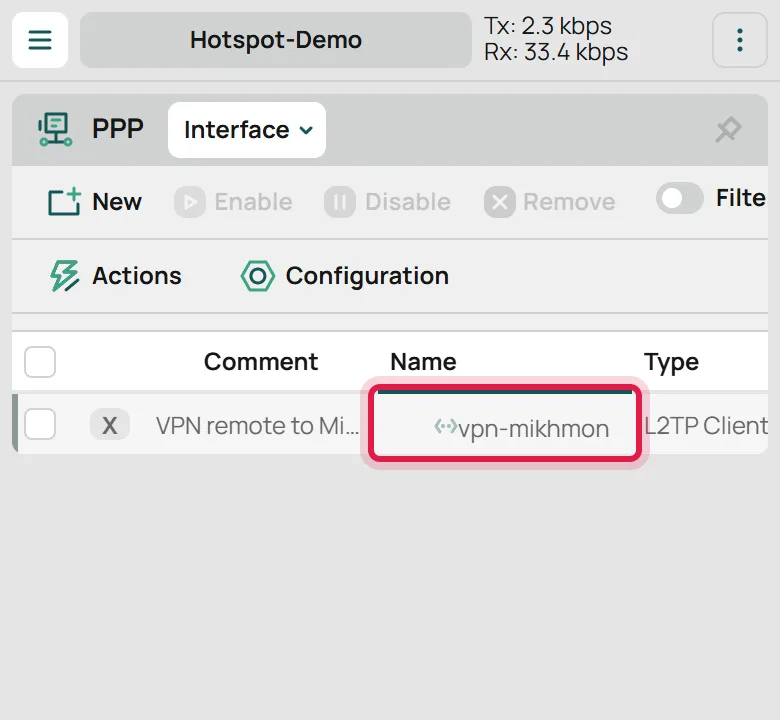
PPP > Interface
What the error messages mean
Connection refused means the router is reachable but the API service is off or uses another port. Enable api under IP > Services or match the port in Mikhmon.
A timeout, or Mikhmon stuck on connecting, means packets never reach the router. The cause is usually a wrong IP, a firewall input rule that drops the API port, or a VPN that is down.
Invalid user name or password means the network is fine but the RouterOS user is wrong or its group lacks the api permission.
If the api service has an Available From list, only addresses on that list may connect. Add the Mikhmon server's IP or its VPN IP to it.
Online Mikhmon and routers behind NAT
A Mikhmon running on an internet server cannot reach a router behind the ISP's NAT. Connect the router over VPN remote and enter the router's VPN IP as its address in Mikhmon.
Don't open the API port to the whole internet. Limit access with Available From or a firewall rule so only the Mikhmon server can connect.
RouterOS 7 notes
RouterOS 7 still serves the API on port 8728 and API-SSL on 8729. After upgrading from RouterOS 6, check IP > Services again because service and firewall settings can differ from before.
Collect evidence before changing settings
Record the time, error message, router session, and VPN state. If one router fails, compare connectivity with another without copying customer passwords or configuration.
These commands inspect the service and interfaces. A timeout does not by itself prove ISP blocking; firewall rules, return routing, and source restrictions also matter.
/ip service print detail where name="api"
/interface printFrequently asked questions
Why is Mikhmon stuck on connecting?
Mikhmon has had no reply from the router. Check the IP and port, make sure the VPN shows running, and make sure no firewall input rule drops the API port.
What if my API port is not 8728?
Write the port after the IP with a colon in Mikhmon's router IP field, for example 10.10.10.2:8730.
Does the router need a public IP?
No. Use VPN remote and enter the router's VPN IP as its address in Mikhmon.